

Viewing an Application
When an application is submitted, you should receive a notification email. This will direct you to log into your account to view the submitted application and reports!
Once logged into your dashboard, click the View button next to the application you'd like to access.
Then simply click on the corresponding tabs to view the application and reports:
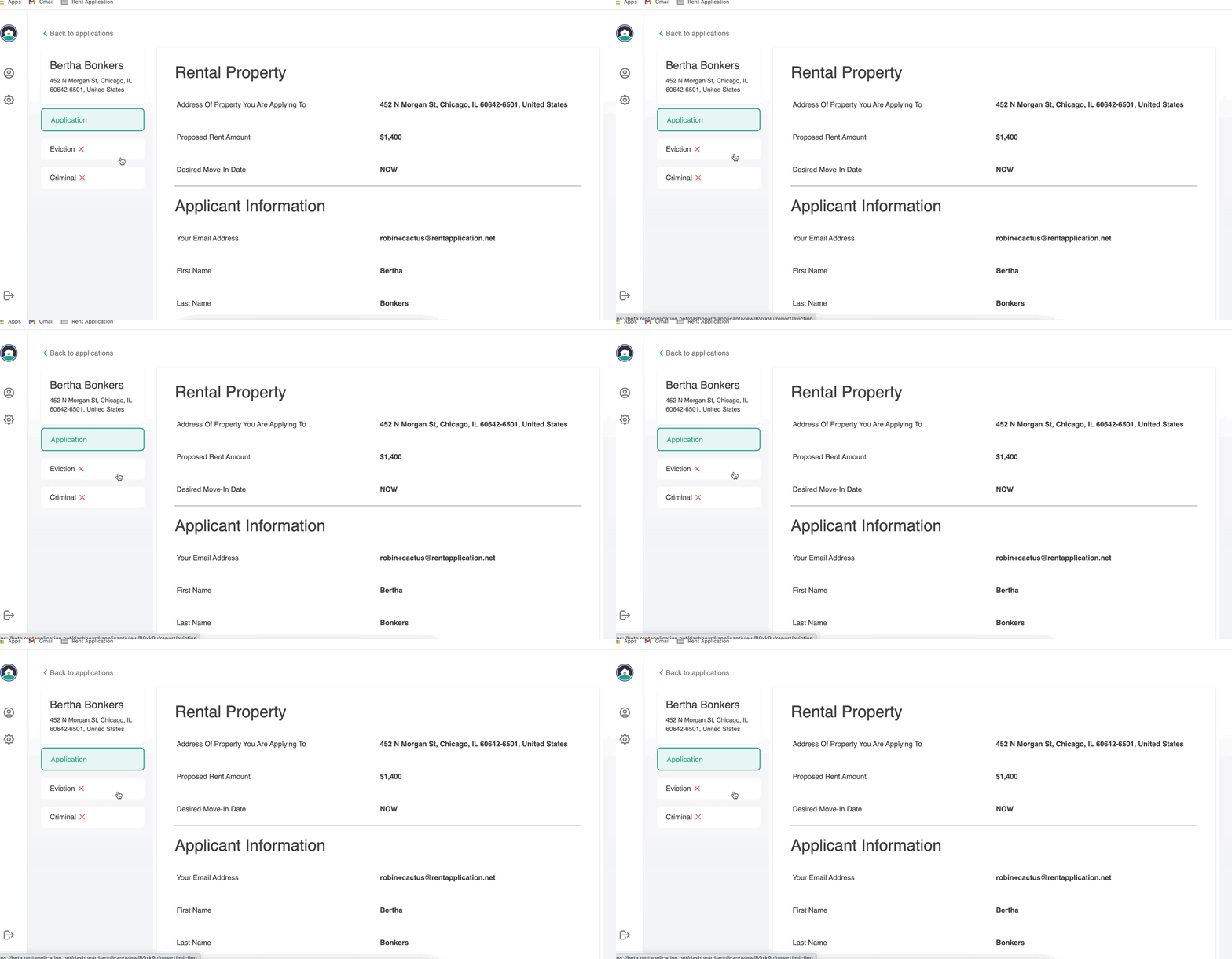
Application Summary
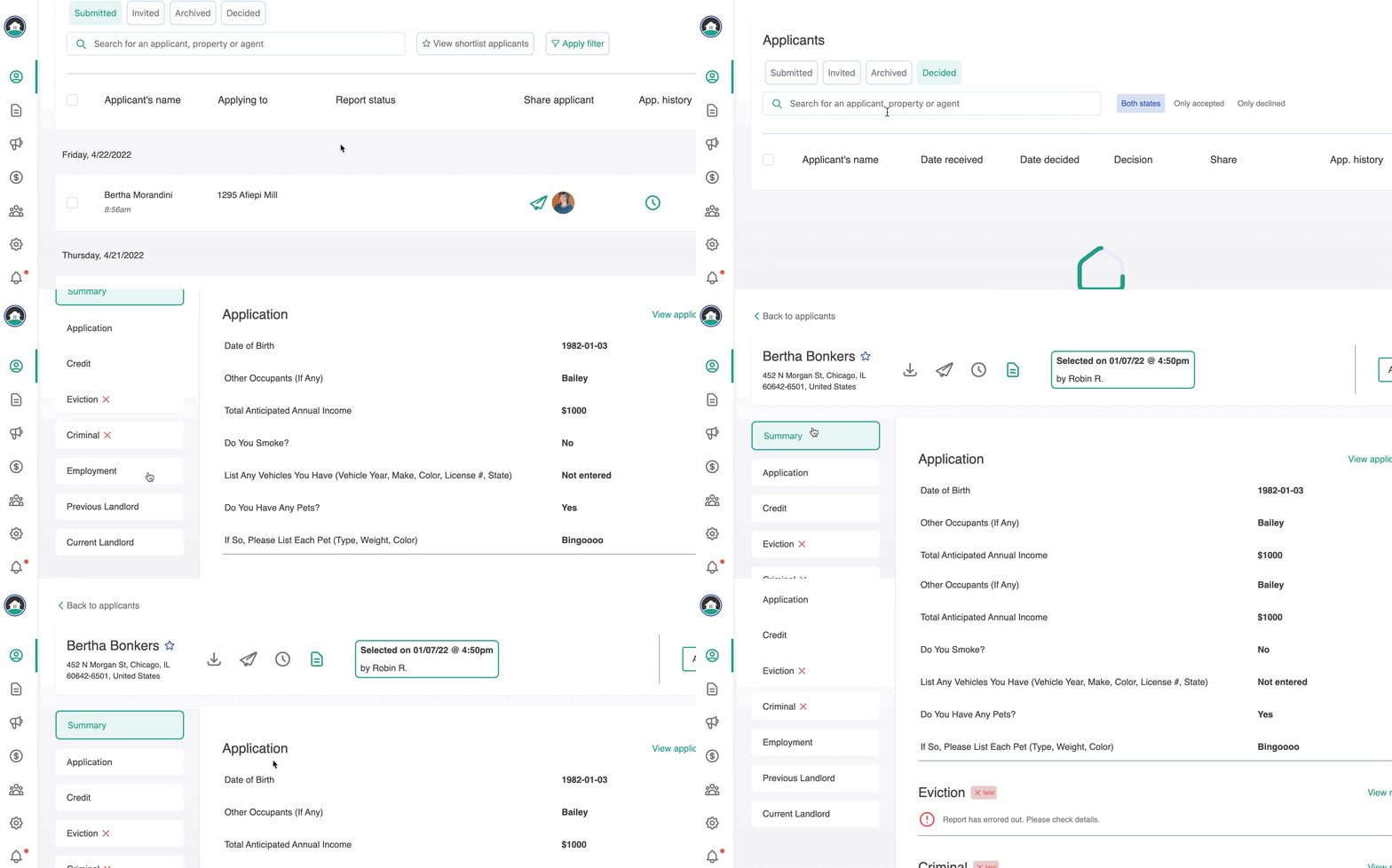
When viewing a completed application, you'll see a Summary tab which helps you pull the most important information out for decisioning:
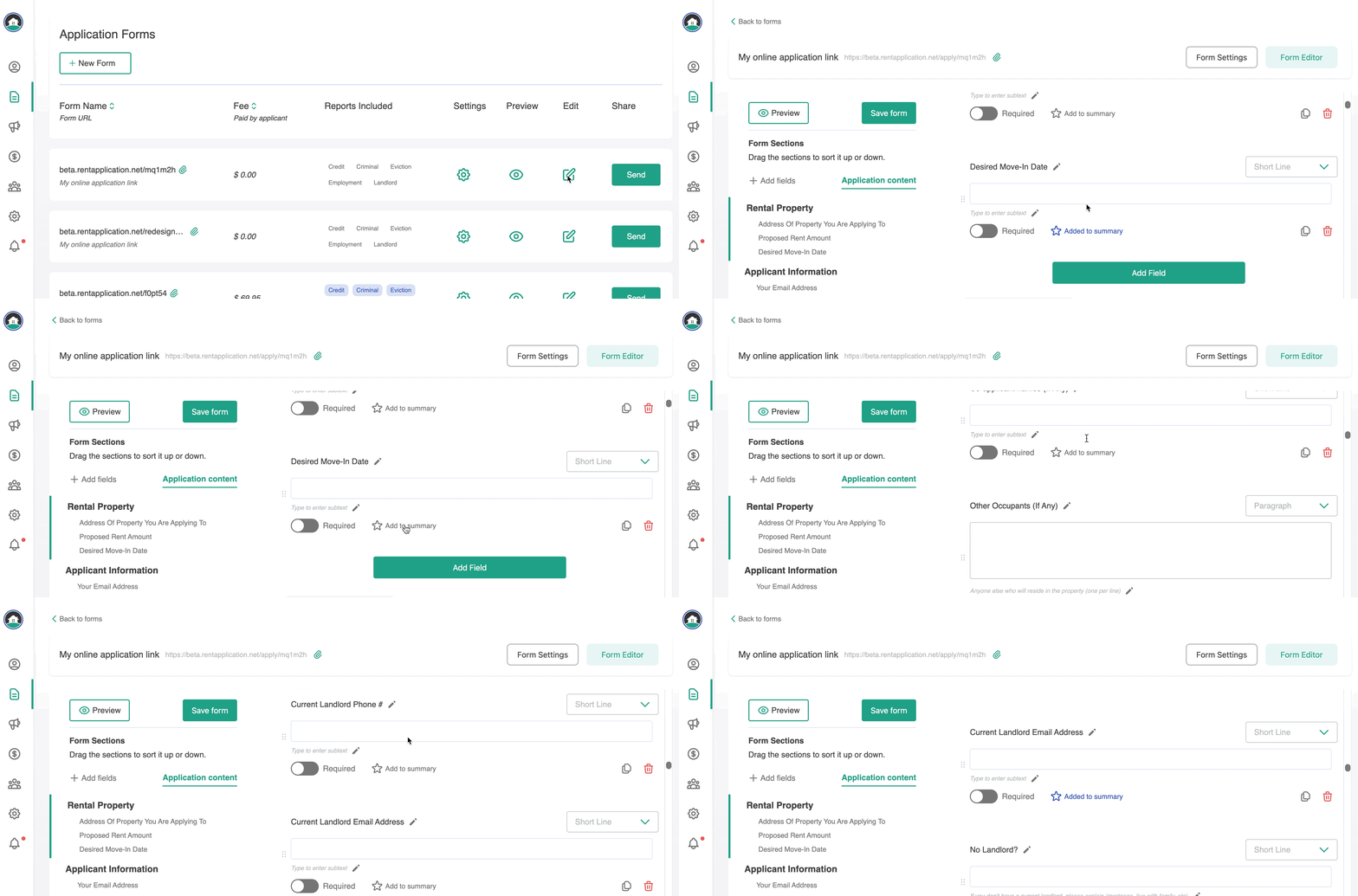
You can decide what information to include in the summary tab, when editing your form:
Downloading Complete Application
You have the option to download the application, reports, and attachments in a zipped file with one click.
Here's how:
1. Log in to your Rent Application account by going to: https://www.rentapplication.net/login/
2. Click in to view the application you wish to download.
3. From the application view page, click the Download button at the top of the page:
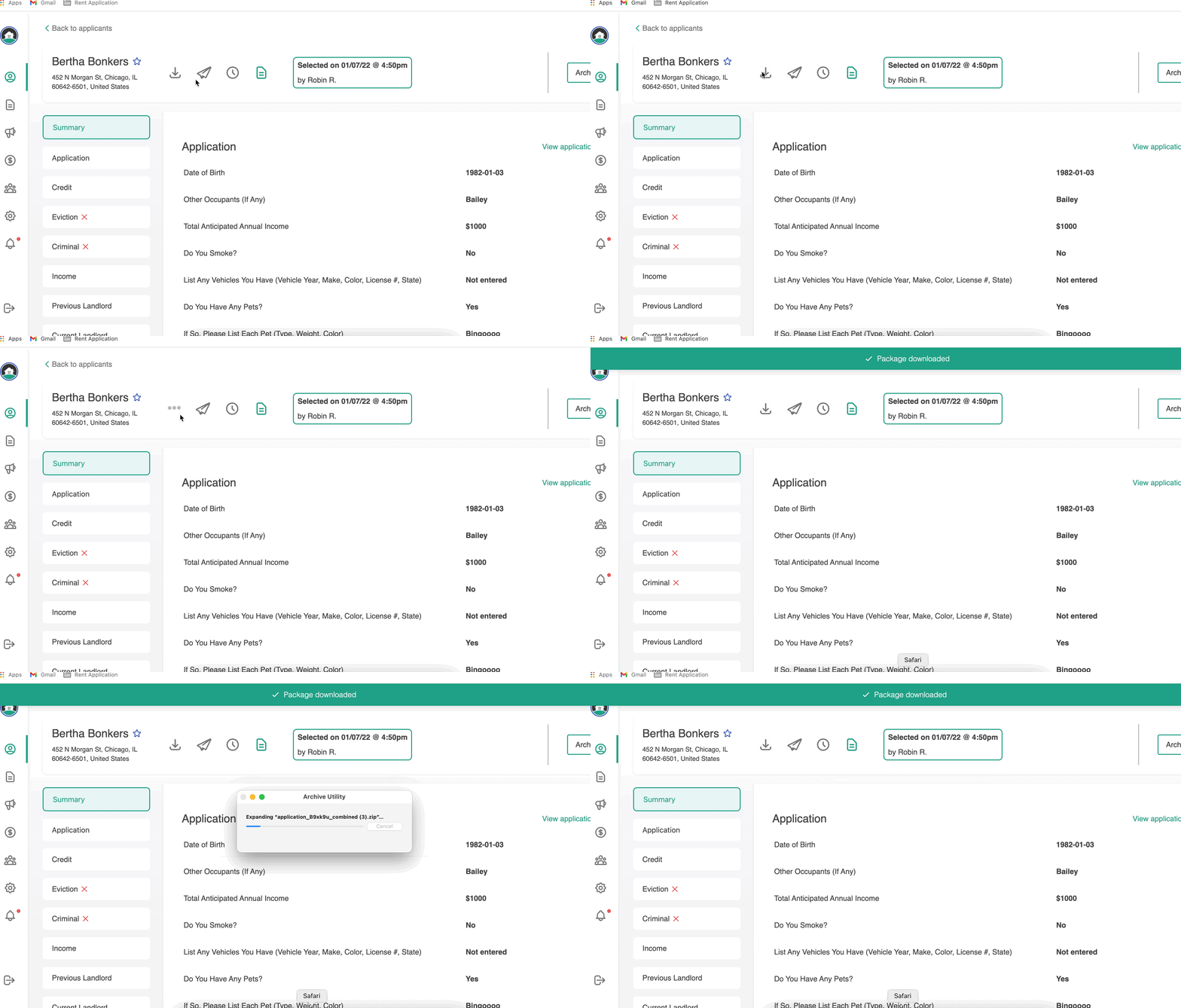
The entire application and supporting documents will download in a zipped folder. You'll need to unzip the folder to view the files. On a Mac, clicking the zipped file will open it automatically, on a PC you will need to extract the files.
Downloading Individual Items
You have the option to download the application, reports, and attachments separately if you do not need the entire package.
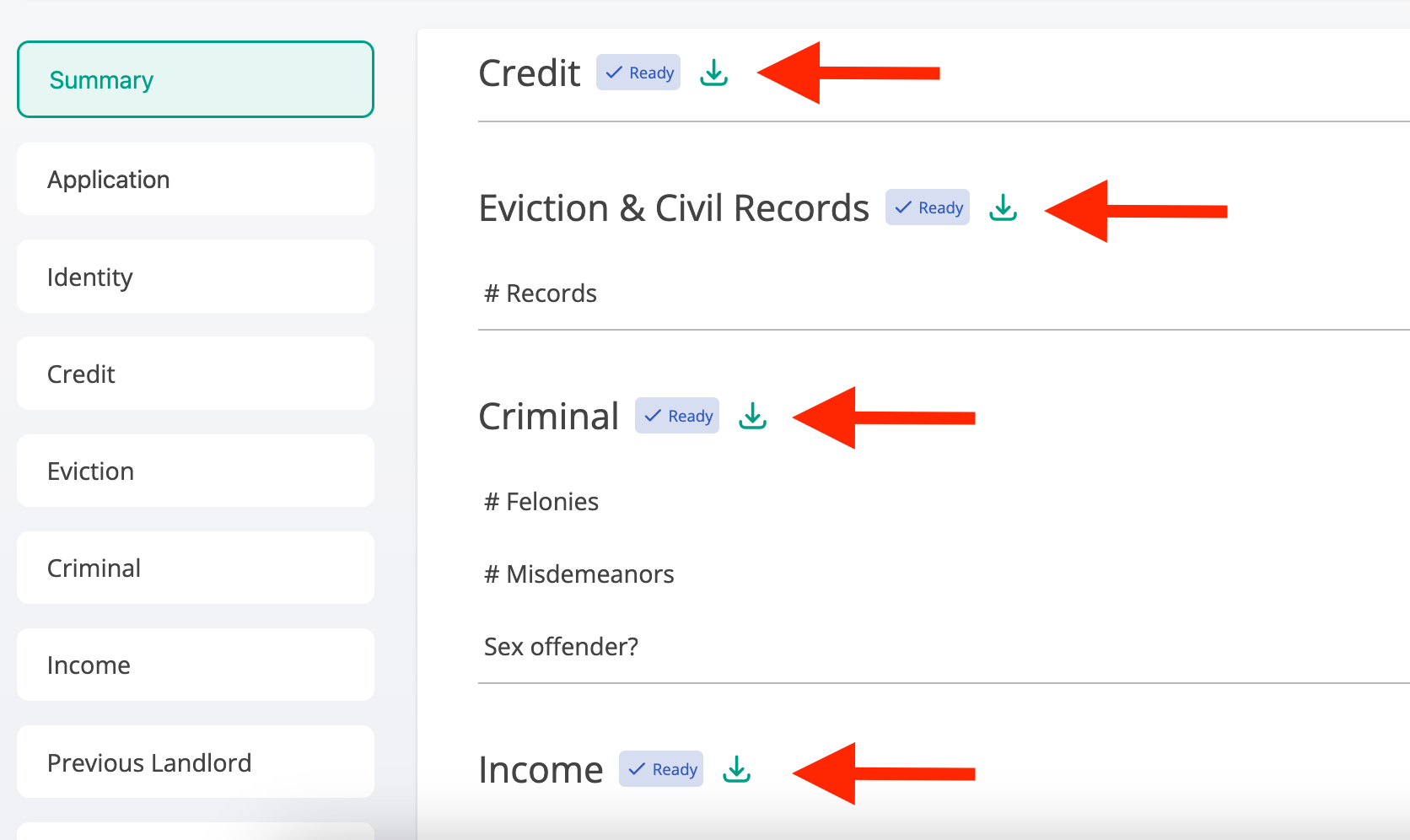
To do so, click to view the application Summary. Here, you will see that there is an individual file download next to each application item:
Downloading on Mobile Devices
Please note that on mobile devices (phones) you may not be able to download zipped files. This means the option to download the complete application package may not work.
Instead, you should be able to download using the buttons for individual items. Apologies for the hassle, but this is the best way to get what you need!
Don't forget- if you are downloading the items to email to another party, you can utilize our Share feature instead! See "related articles" below to learn how to Share an application you have received.